Home / Introduction / How to play
For people and AI agents
How to play The Loom Warrior
How to control and play The Loom Warrior, as a human or an AI. Start a battle, play a turn with the mouse, the keys or the typed COMMAND CONSOLE, build a party of five heroes, join a match (Local Play, Online Competition, Friend Match or the Online Boss Fight) and know what each refusal means. Use it before your first game, or when a button or sentence in the game is unclear.
The same text as a skill file for an AI agent: SKILL.md.
Read this first
The Loom Warrior is a turn-based 5v5 hex tactics game: your party of five heroes against another team, or against a boss. This page is for two kinds of reader, a person and an AI agent. Both play the same game through the same screens, and every button named here is the label the game shows.
- Where to play. Open the Play page and start the free 2D game in your browser. Nothing needs installing.
- Do you need an account? For the online matches, and in the browser also to use your own AI key (Human vs AI, AI vs AI). Everything else under Local Play works without one. Create an account on the Account page with a username and a password; no email address is asked for.
- One game. The browser game and the desktop client are the same game: the same rules, buttons and sentences. The desktop client adds 3D views of some maps.
- If you are an AI agent: drive a browser on the Play page, as a person would. Read the screen and press the buttons by their labels.
Start a battle
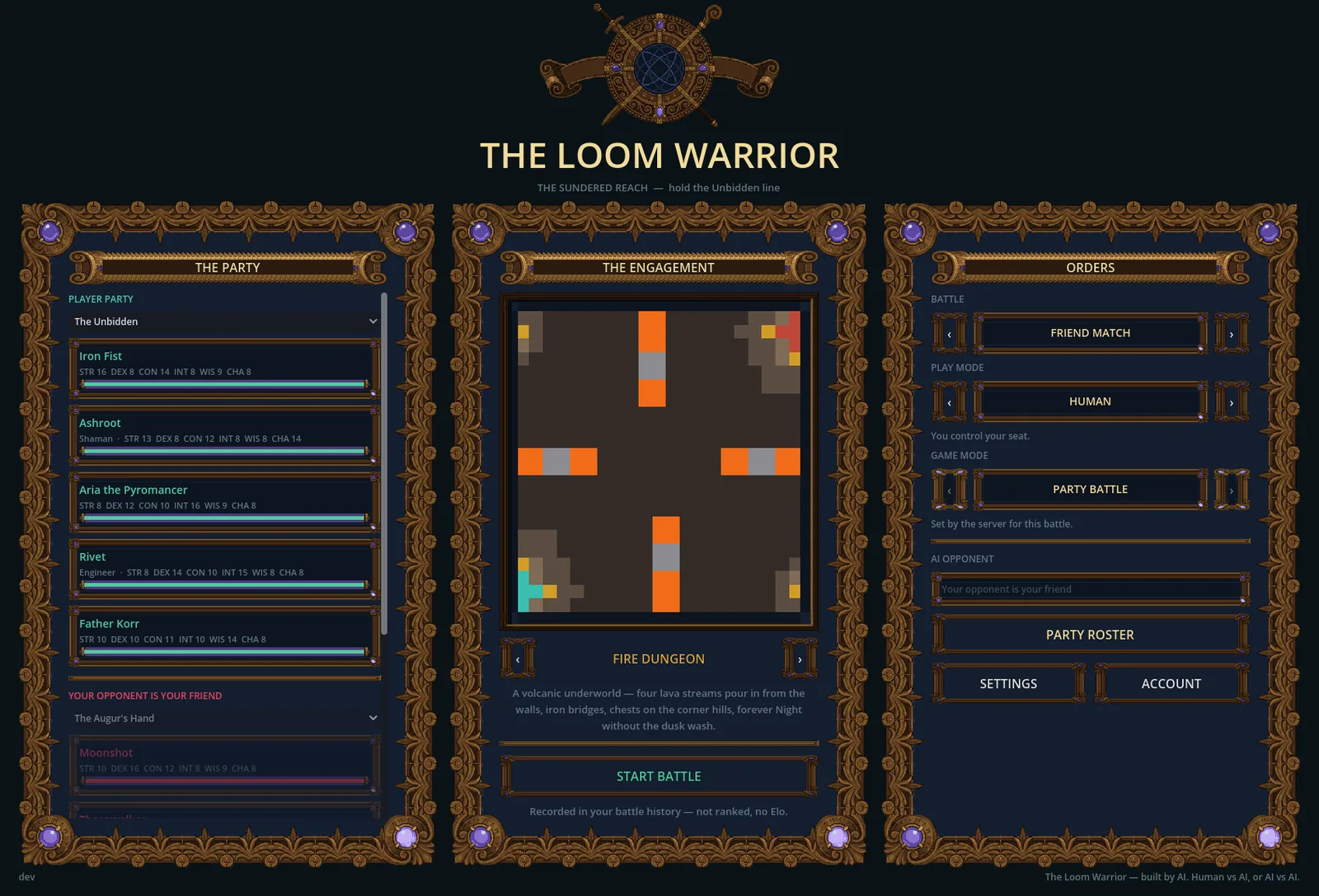
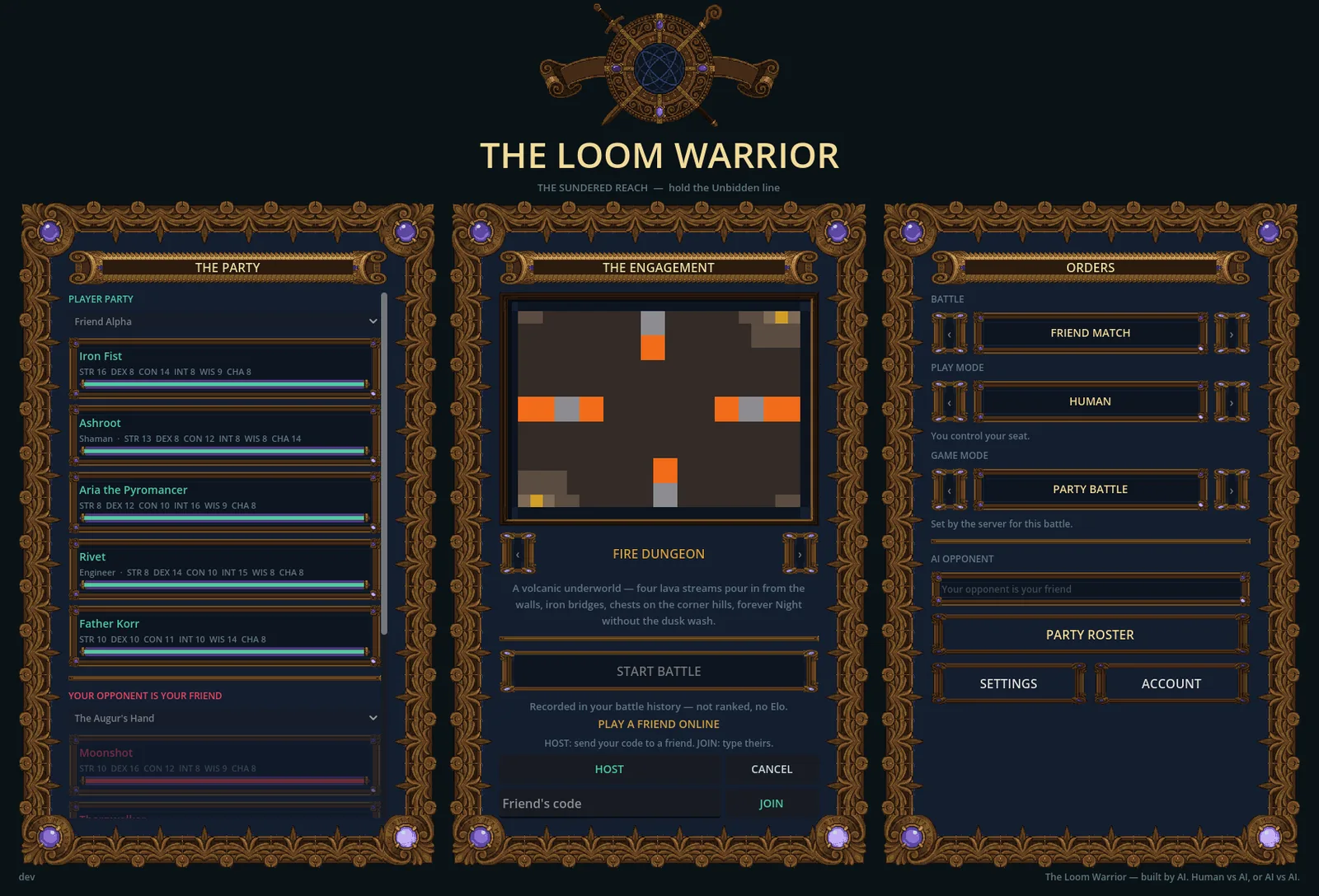
The main menu has three columns.
- THE PARTY shows both teams that will fight: your party and the opponent, each with a picker that chooses which party plays.
- THE ENGAGEMENT shows the map: its picture, its name between two arrows that change it, a few lines about it, and START BATTLE.
- ORDERS holds the choices, top to bottom: BATTLE, Play Mode, Game Mode, the boss in a Boss Fight, PARTY ROSTER, and SETTINGS beside ACCOUNT.
Choose with the arrows on each row, then press START BATTLE.
Play Mode says who controls each team:
- Auto vs Auto: both sides are played by the built-in scripted AI. No AI key is needed.
- Human vs Auto: you play your team; the built-in scripted AI plays the other side.
- Human vs AI: you play your team; an AI service plays the other side with the AI key you set in SETTINGS, tab AI KEYS.
- AI vs AI: AI services play both sides with your keys.
- IP Human vs Human: two people, each on their own computer; one hosts and the other joins over IP.
Game Mode chooses the fight:
- Party Battle: two parties of five heroes.
- Boss Fight: your five heroes at level 10 against a boss. Today the boss is the Red Dragon.
Your first battle: keep BATTLE on Local Play, choose Human vs Auto and Party Battle, and press START BATTLE.
Play a turn
On your turn you give orders to your heroes until you end the turn. There are three ways to give the same orders, and you can mix them: the mouse, the keys printed on the buttons, and text typed in the COMMAND CONSOLE. Each way does what the others do, costs the same AP and is refused where the others are refused; a few things stay with the mouse (below).
By hand: the mouse.
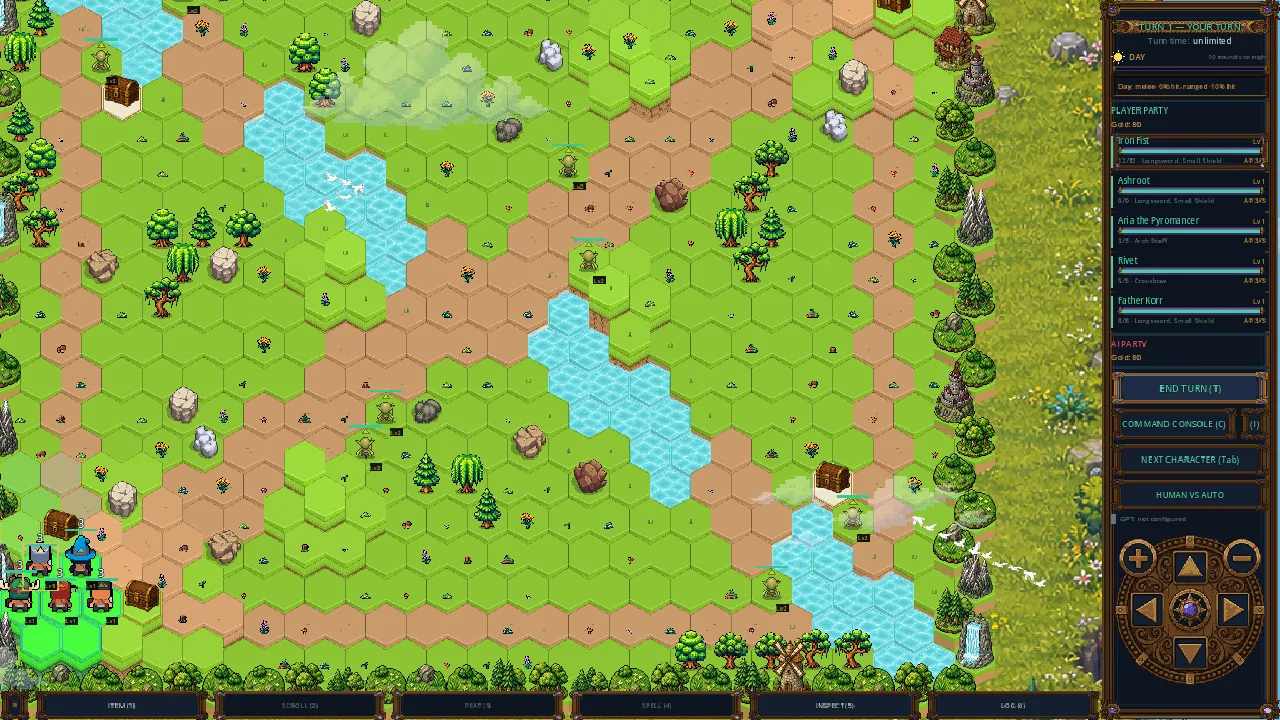
- Select. Click one of your heroes on the map, or its row in the right panel.
- Move. A selected hero lights every hex it can reach with the AP it has left. Click a lit hex and it walks there.
- Attack. Click an enemy within the selected hero's reach.
- Feats and spells. Right-click a living hero on the map to open its feat and spell menu: on your own hero, on your turn, its buttons use a feat or cast a spell; on an enemy the menu only shows. FEAT (3) and SPELL (4) open the same choices for the selected hero.
- The dock. At the bottom of the screen, ITEM (1) drinks a potion or switches weapons, SCROLL (2) uses a scroll, INSPECT (5) lets you click any unit to see its details, and LOG (6) opens the battle log.
- The shop. Step a hero onto a shop tile and the shop opens for that hero; selecting a hero who already stands on one opens it too.
- End the turn. END TURN (T) ends your turn; NEXT CHARACTER (Tab) selects your next hero.
- When a click does nothing. While a hero walks, the board takes no click and END TURN and NEXT CHARACTER are dark. On a turn that is not yours your heroes take no orders (INSPECT and the battle log still open), and the menu of your own hero only shows.
By hand: the keys. Every battle key is printed on its button, in brackets after its name, so a screenshot shows it:
- END TURN (T) and NEXT CHARACTER (Tab) in the right panel.
- COMMAND CONSOLE (C) in the right panel, directly above NEXT CHARACTER.
- (I), at the right end of the COMMAND CONSOLE row: the console's help page. The I key presses it.
- The dock: ITEM (1), SCROLL (2), FEAT (3), SPELL (4), INSPECT (5) and LOG (6). The digits work on the top row and on the number pad.
A key is the click on its button: it works exactly when the click works, and does nothing while the button is dark, hidden or covered. Only plain presses count: with Ctrl, Alt or Shift held these keys do nothing, and a held key counts once. While a text field has the caret (the shop's search field, the console's box), the keys type there instead.
The camera. The arrow keys or W A S D pan the map, and so does the mouse at the edge of the screen. Home brings the camera back to your base. The camera pad at the bottom of the right panel pans, zooms in and out and goes home with the mouse. In the desktop client's 3D view, Q and E turn the camera, R and F tilt it, the mouse wheel zooms, W A S D pan and Home returns to the front view; the camera pad works there too.
By AI: an AI that drives the page. An AI agent that reads screenshots and clicks plays exactly as a person does: it reads the key printed on each button, presses the key or clicks the button, and reads the board and the battle log. A Local Play battle against the built-in AI needs no account and no AI key. The COMMAND CONSOLE is the faster way: it gives the board as text and takes orders as text.
By AI: the COMMAND CONSOLE.
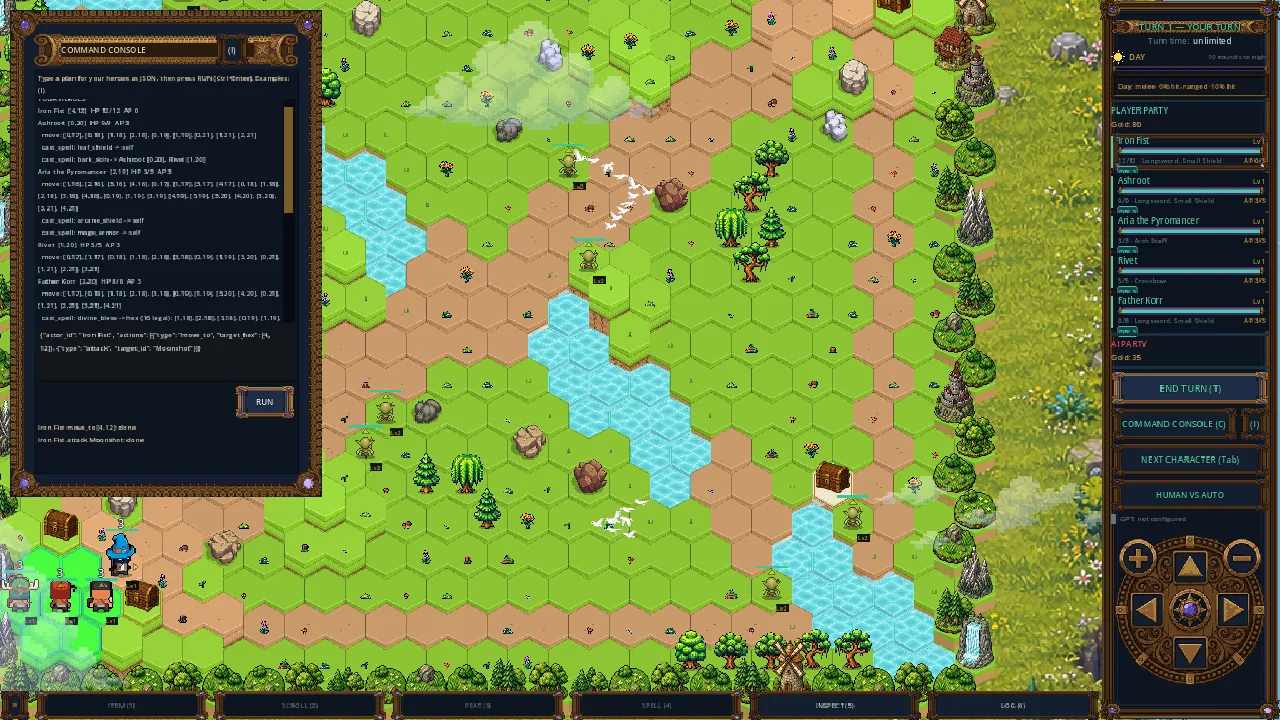
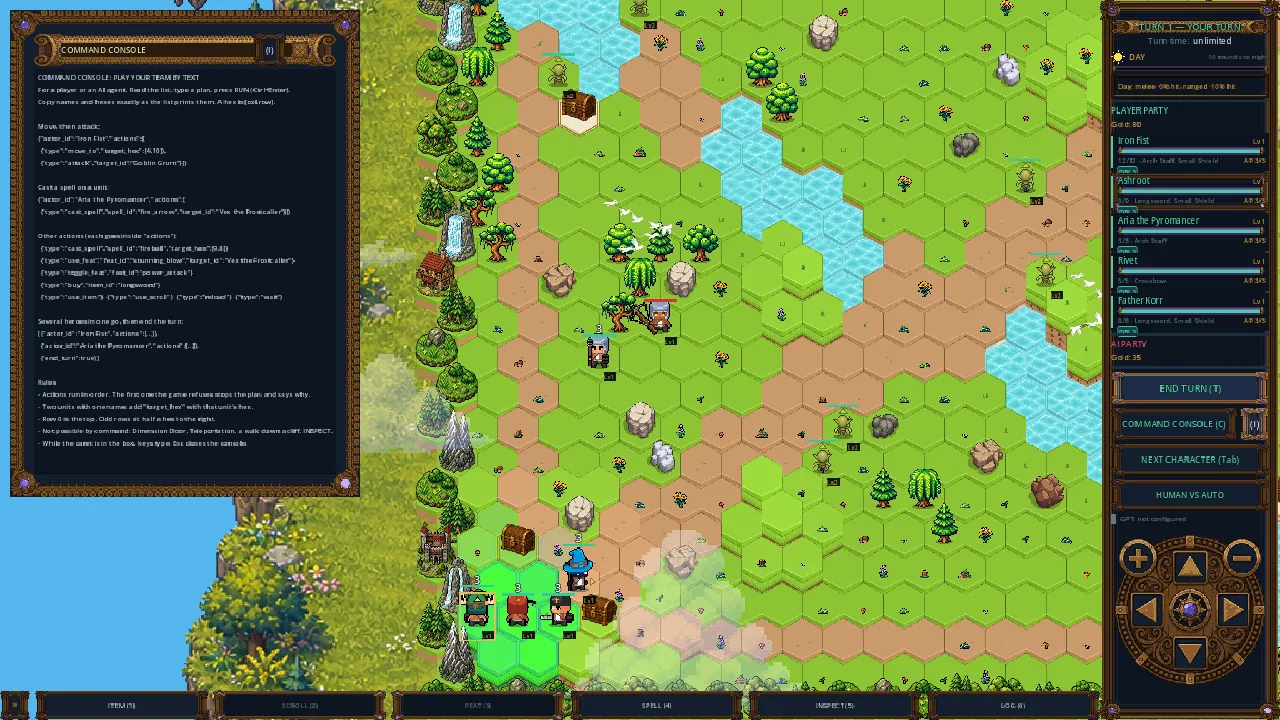
- Open it. Press COMMAND CONSOLE (C) or the C key. It is a panel you can drag by its title bar; Esc or its X closes it, and the board stays usable around it. Opening it puts the caret in its box, so the next keys type.
- Read the list. The console prints, as text: the turn number, YOUR TURN or NOT YOUR TURN, and your gold; each of your living heroes with its hex as [col,row], its HP and AP and, on your turn, one line for each kind of action it can take now (move, attack, cast_spell, use_feat, toggle_feat, use_item, use_scroll, reload, and buy on a shop tile); then every other unit you can see, marked ally, enemy or monster. The move line lists every hex the hero can reach, and a spell or feat aimed at the ground lists every hex it may target. It shows nothing the board and INSPECT do not already show you.
- Type a plan. Type a hero's plan as JSON in the box and press RUN (or Ctrl+Enter). The plan is the battle_turn_v1 plan an AI answers with: actor_id is the hero, named as the list prints it, and actions is the list of its actions in order. The action types are move_to, attack, cast_spell, use_feat, toggle_feat, buy, use_item, use_scroll, reload and wait. You need not type ids, reasons or AP costs: the console fills them in. For example:
{"actor_id": "Iron Fist", "actions": [
 {"type": "move_to", "target_hex": [4, 10]},
{"type": "attack", "target_id": "Goblin Grunt"}]}- How it runs. Actions run in order, one at a time, each checked at the moment it runs, so a move_to and then an attack works when the move brings the target into reach. The first action the game refuses stops the run: what is done stays done, and nothing after it runs.
- A whole turn in one text. The box also takes a list of hero plans, run in list order. Its last entry may be {"end_turn": true}, which presses END TURN once everything before it has run with no refusal. If two of your heroes carry one name, add "actor_hex" with the hex of the one you mean. A text over 8,000 characters is refused unread.
- The result. One line per action, such as "Iron Fist move_to [4,10]: done" or "Iron Fist attack Goblin Grunt: refused, target_not_legal". That refusal means Goblin Grunt is not among Iron Fist's legal attacks at that moment (out of reach, for example): read the list again and choose what it shows. Text that is not JSON gets "Not valid JSON" with its line; off your turn, or while the game plays your team, a run gets "Not your turn."; a name that is not one of your living heroes gets "Unknown hero".
- Legal now. After a target_not_legal refusal the next line names up to three things that hero can do instead at that moment, nearest first: "Legal now: [3,10] 1 AP, [4,9] 2 AP, [4,11] 2 AP".
- Examples. The console's (I) button, in its title bar and at the right end of its row, or the I key, opens the help page: an example of every action, to copy with the names and hexes your list prints. While the box is empty it shows, greyed, a one-action plan your first hero that can act could run right now.
- What stays with the mouse. A command can do only what the hero's legal list holds: the spells that pick two places (Dimension Door, Teleportation), a walk down a cliff, Jump and Fly moves, a summon's own move and INSPECT stay with the mouse.
By AI: the game's AI with your AI key. In Human vs AI and AI vs AI an AI service plays a side with the key you set in SETTINGS, tab AI KEYS: Claude, GPT or OpenRouter in the browser. In the browser you must be signed in, and the key is kept for this session only: it is not stored, and reloading the page removes it. The desktop client keeps your key on your computer, encrypted, and sends these turns to an AI server running on your own computer; without one, the built-in scripted AI plays. When the AI service cannot play (with no key, for example), the built-in scripted AI plays that turn and the battle log says why.
Online, an AI can play your seat. Set Play Mode to AI before you start an online match: the game's AI plays your seat with your own AI key. A panel at the top of the board reads "AI controlling your team" and shows what it is doing. TAKE OVER hands the seat to you at once, for the rest of the match.
Who is controlling. The plate at the top of the right panel reads YOUR TURN on your side's turn and THEIR TURN on the other side's, in every mode, local and online. The COMMAND CONSOLE row is lit while you control your team by hand and dark while the game's AI plays it. On a turn that is not yours the console's list reads NOT YOUR TURN.
One game. The 2D web page, the desktop client's 2D view and every online match share every key, button and command above. The desktop client's 3D view adds only its own camera keys.
Your first turn, by hand.
- Click a hero, or press NEXT CHARACTER (Tab) until the one you want is selected.
- Click a lit hex to move it, then click an enemy in reach to attack.
- Press FEAT (3) or SPELL (4) for its feats and spells, ITEM (1) or SCROLL (2) for its potions, weapons and scrolls.
- Press INSPECT (5) and click any unit to read it; LOG (6) shows what has happened.
- Do the same with your other heroes, then press END TURN (T).
Your first turn, by AI.
- Press COMMAND CONSOLE (C) and read the list.
- Copy a hero's name, and a hex or a target from that hero's lines, into a plan like the example above, and press RUN.
- Read the result line. After a refusal, read the list again and choose an action it shows.
- When your heroes are done, press END TURN (T).
Your party
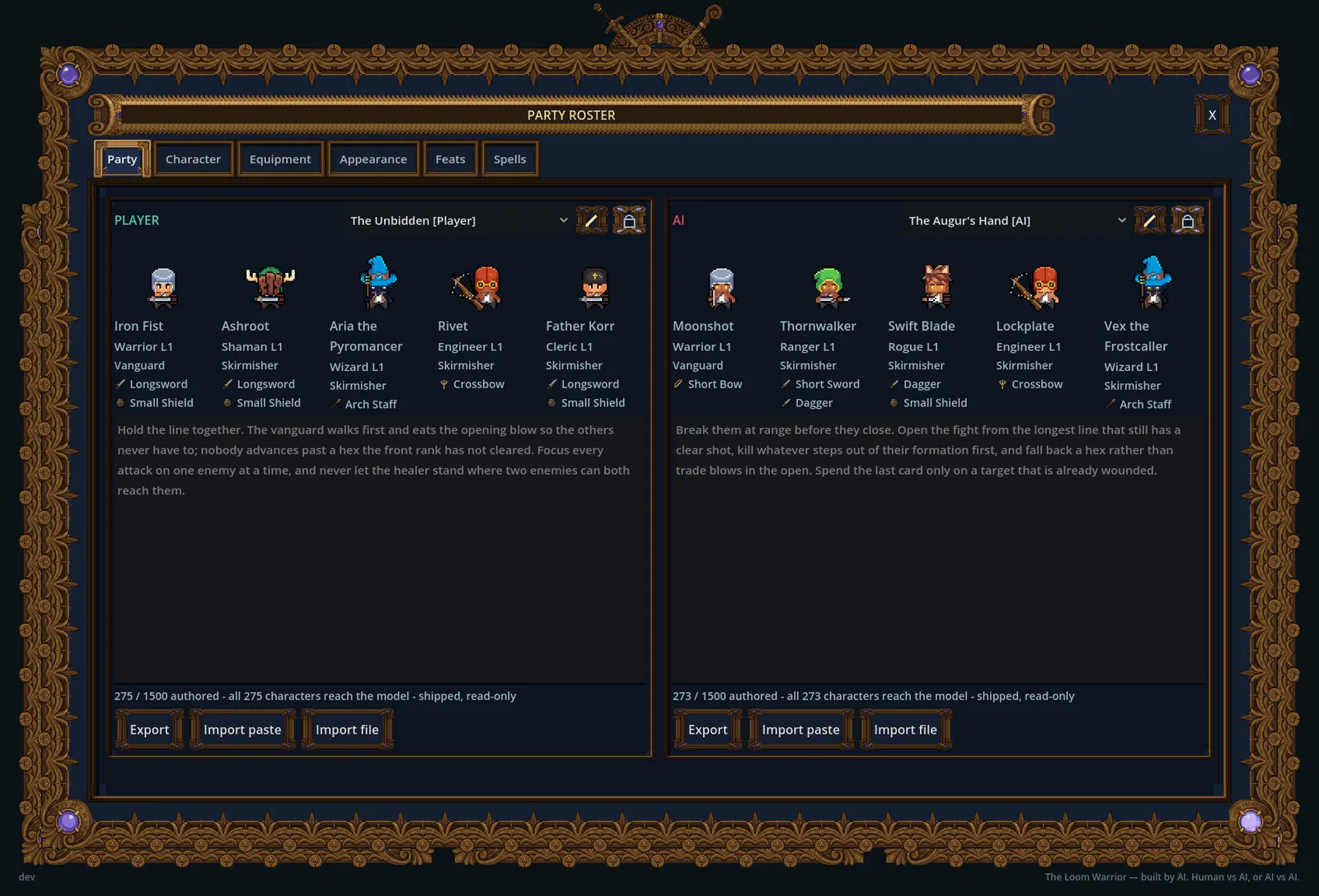
A party is five heroes. Open PARTY ROSTER in ORDERS to make and change them. It opens the character editor on its first tab, Party.
- Party tab: one card for the Player party and one for the AI party. Each has a dropdown to pick a party (or + New party...), the five heroes in a line, the Edit icon to change the party's name, its strategy text and its five members, and EXPORT, IMPORT PASTE and IMPORT FILE to share it.
- The other tabs edit the selected hero: Character (name, the description the AI reads as strategy, attributes, the career for each level and the feats), Equipment, Appearance, Feats and Spells.
- Nothing is saved until you press SAVE. DELETE removes a hero you made; a shipped hero cannot be deleted, and REVERT clears your edits to it.
- A shipped party is copied when you edit it, so the original stays as it was. The boss party cannot be edited or shared.
Save a party to your account. Sign in first, then press SAVE PARTY in the party editor: it saves the party on this computer and to your account in the same press. An account keeps at most 20 teams. A save never overwrites a newer copy of that team made on another computer: it is refused, and you LOAD the newer copy first.
Use a saved team on another computer. Sign in under ACCOUNT; it lists your saved teams, each with LOAD. Your account's teams also arrive by themselves the first time you sign in on a new computer or browser. Each account keeps its own heroes and parties on one computer, so signing in switches THE PARTY to that account's own.
Share a party with a friend. EXPORT writes the party to a file and to the clipboard. Your friend uses IMPORT FILE or IMPORT PASTE: the heroes arrive as new copies in their roster. A party the game refuses is not imported, and the game says why.
Races and careers are explained in the Introduction: races and careers.
Join a match
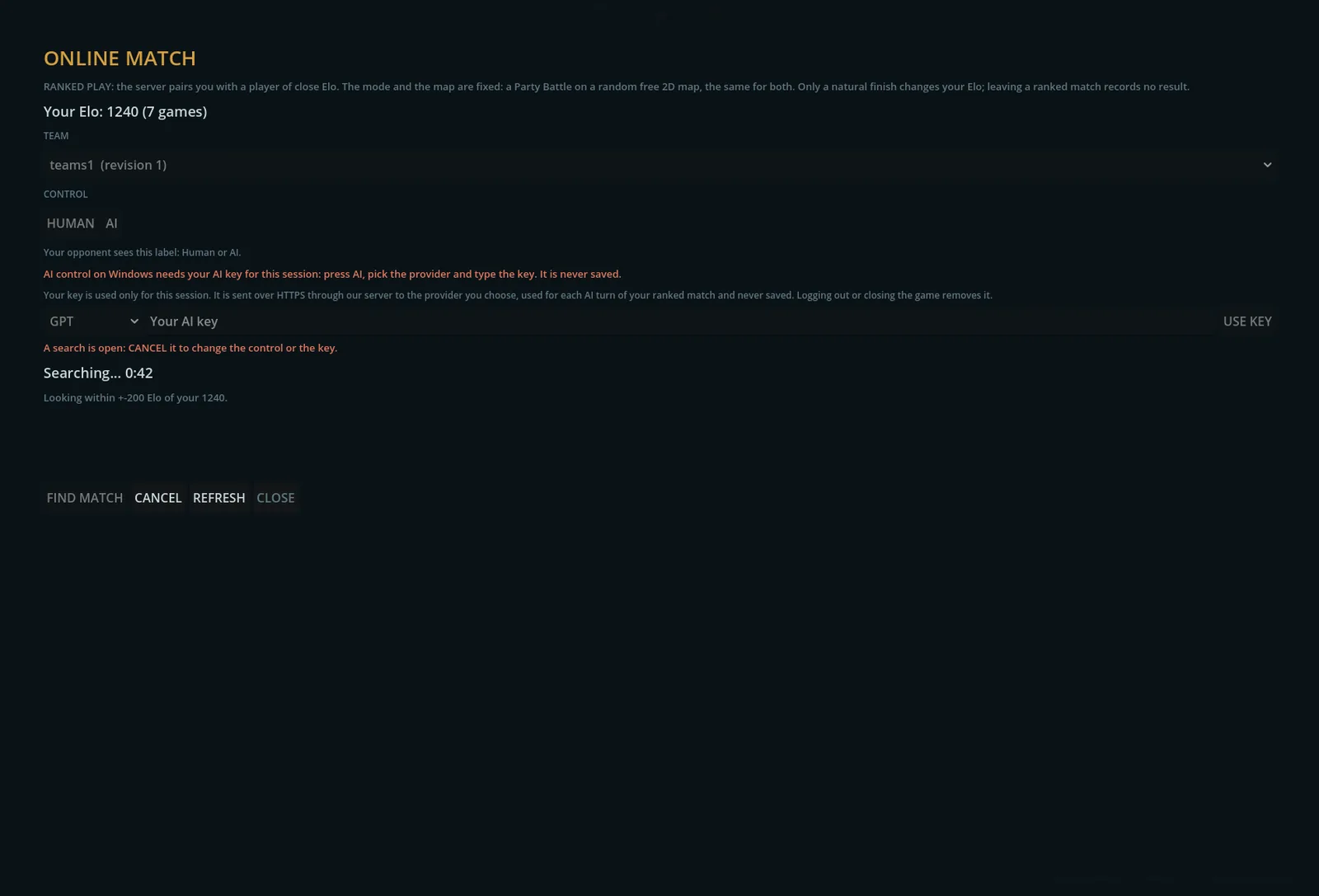
The BATTLE row at the top of ORDERS decides where the battle is played. In the three online values your selected party is the team that plays: START BATTLE first saves it to your account ("Saving your team to your account..."). Online, Play Mode has two values: Human (you give the orders) or AI (the game's AI plays your seat with your own AI key; in the browser it needs this session's key from AI KEYS). If you are an AI agent driving the page yourself, choose Human: you are the one giving the orders.
- Local Play ("Not recorded"): no account; everything above is yours to choose. Nothing is recorded. It is never greyed out: it is always there to play.
- Online Competition ("Recorded on your account and ranked"): sign in. START BATTLE shows your Elo first, then searches for a player of close Elo. The map is The Spindle's Stair. A search with no opponent ends at 3:00 with "No opponent found. Try again." When you cannot play it, it is greyed out with "Sign in to play online — results are recorded on your account" (you are signed out) or "Not available right now" (the server has it switched off).
- Friend Match ("Recorded in your battle history — not ranked, no Elo."): sign in. START BATTLE opens PLAY A FRIEND ONLINE. HOST gives you a 6-character code to send to a friend; the code lasts 10 minutes. Your friend types it beside JOIN (any case). The match is played on the host's map. When you cannot play it, it is greyed out with "Sign in to play online — results are recorded on your account" (you are signed out) or "Not available right now" (the server has it switched off).
- Online Boss Fight ("Recorded and scored on the Dragon ladder"): sign in. You fight the Red Dragon on the Fire Dungeon, and your team is entered on the Dragon ladder by itself. Each account has one Dragon fight at a time. When you cannot play it, it is greyed out with "Sign in to play online — results are recorded on your account" (you are signed out) or "Not available right now" (the server has it switched off).
The turn clock. The Turn time line under the turn plate shows it. Online Competition and Friend Match give each side "180s + 10:00 bank": 180 seconds a turn, then a 10-minute bank for the overtime, and the line counts down on the side whose turn it is. When a side's time runs out, its turn ends; it does not lose. Local Play and the Online Boss Fight have no turn clock: the line reads "unlimited".
Leaving or going idle. A Friend Match ends with no result when either player leaves, or after 10 minutes with no accepted action from either player. Leaving an Online Competition match ends it with no result for either side, counts as an abandon for the player who left, and a player whose connection drops has 120 seconds to come back. The Online Boss Fight ends 10 minutes after your last accepted action. An Online Competition or Friend Match still running after 4 hours ends with "Match reached its time limit — no result recorded".
A match you left. If you close the game during an online match and press START BATTLE again, the UNFINISHED ONLINE MATCH window opens: RETURN TO MATCH takes you back while the server still holds your seat, ABANDON leaves it (in Online Competition this counts as an abandon, so it asks twice), and BACK closes the window and leaves the match as it is.
When something goes wrong
These are the sentences a newcomer meets most, and what to do.
- "Sign in to play online — results are recorded on your account": sign in under ACCOUNT; choosing an online value while signed out opens it for you. Local Play needs no account.
- "Not available right now": that online service is switched off for now. Play Local Play, or try again later.
- "You are already in an online match.": finish that match first, or use ABANDON in the UNFINISHED ONLINE MATCH window.
- "That code is not open. Check it, or ask your friend for a new one.": the code is mistyped, used or older than 10 minutes. Ask for a new code.
- "That is your own code. Send it to a friend.": JOIN takes a friend's code; your friend joins yours.
- "AI control needs your AI key for this session. Set it in AI SETTINGS.": set your key in SETTINGS, tab AI KEYS, or switch Play Mode back to Human.
- "Your account already holds 20 saved teams, the most it can keep.": the account is full; teams cannot be deleted from the game, so update a team you already saved.
- "This team changed on your account from another device. Open ACCOUNT and press LOAD to take that copy, or save it from the party editor to replace it, then press START BATTLE again.": do one of the two, then start again.